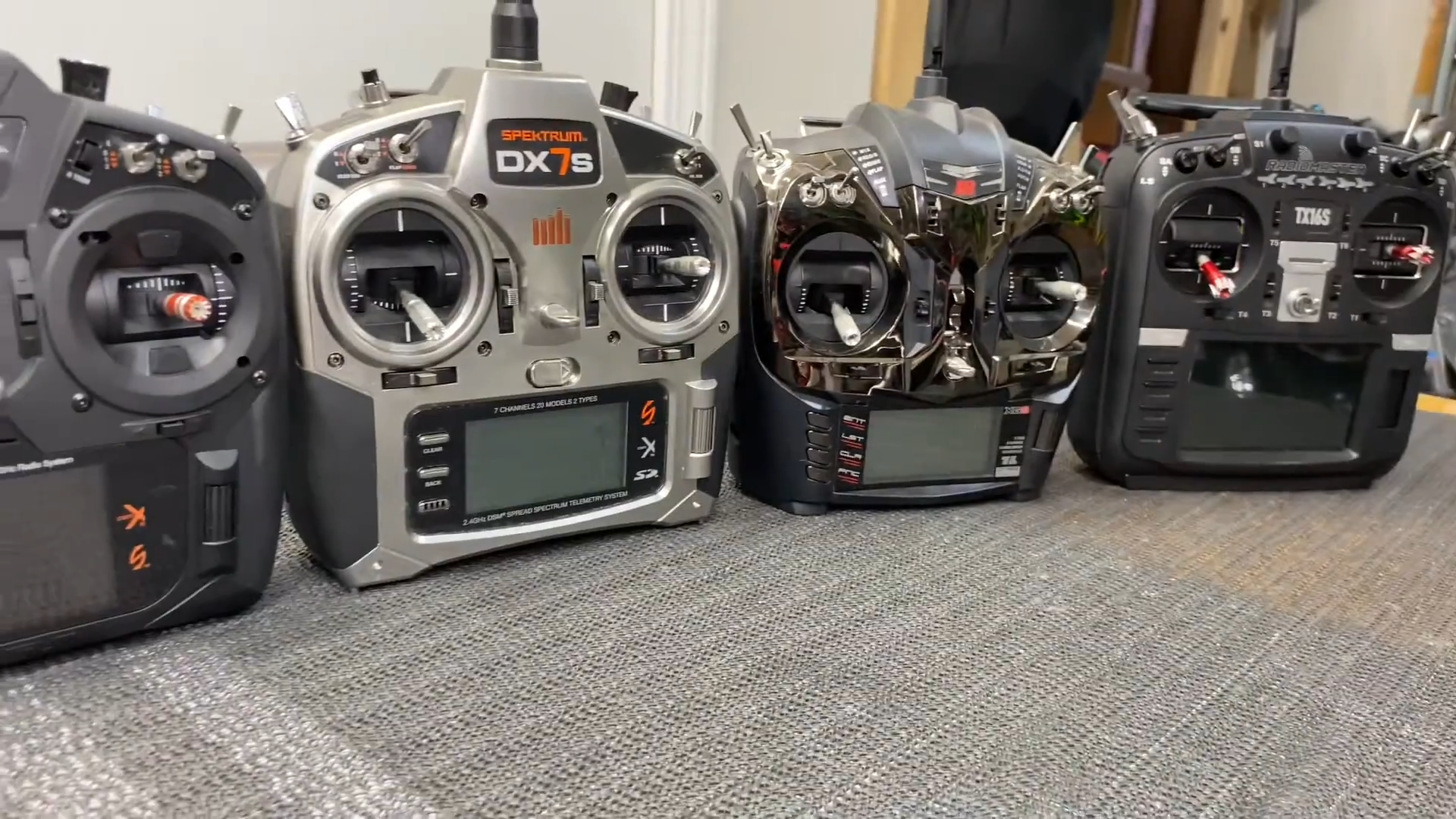
Using SD Cards with Spektrum Transmitters
Many Spektrum transmitters rely on SD or micro SD cards for important tasks: firmware updates, backing up model memories, transferring setups between radios, and loading sound files. Getting the SD card right is critical-if the card is the wrong type or formatted incorrectly, the radio may simply "not see" it.
Why the SD card matters
Inside your Spektrum transmitter is a small embedded computer. Its SD card interface and firmware were designed years ago, and they expect older, simpler SD cards and file systems. Modern high-capacity cards and newer formats (like exFAT) can be too "new" for the radio to understand.
When the card doesn't meet the radio's expectations, you'll see symptoms like:
- SD card not recognized - menus are greyed out or "No SD card" messages.
- Update won't start - firmware file is on the card, but the radio ignores it.
- Import/export fails - model transfer options don't work or abort.
Common Spektrum families and SD card basics
2.1 DX series (DX6, DX7, DX8, DX9, DX18, DX20, etc.)
- Card type: Standard SD card (often via micro SD + adapter on some models).
- Capacity: Typically 16 GB or less is recommended.
- Speed class: Often Class 4 or similar is suggested.
- File system: FAT or FAT32 (not exFAT, not NTFS).
If the radio doesn't recognize the card, the first thing to check is: capacity and format. A 64 GB exFAT card is very likely to fail.
2.2 NX series (NX6, NX8, NX10)
- Card type: Micro SD card.
- Capacity: Up to 32 GB is typical.
- Speed class: Often Class 6 or lower is recommended.
- File system: FAT or FAT32.
NX radios are more modern and can also use Wi-Fi and USB for some tasks, but SD cards are still used for backups and some updates. The same rule applies: keep the card small and formatted to FAT/FAT32.
2.3 iX series (iX12, iX14, iX20)
- Card type: Micro SD card.
- Capacity: Typically up to 32 GB is safe.
- File system: FAT32 is the usual choice.
iX radios run Android, so they can sometimes be more flexible, but for compatibility with Spektrum's update and model-transfer tools, FAT32 is still the safest bet.
Understanding FAT vs FAT32 vs exFAT
When you format an SD card on a computer, you're choosing a file system: the way files are stored and organized on the card. The main options you'll see are:
- FAT (sometimes shown as "FAT16"): Older format, works well on small cards.
- FAT32: Newer but still simple; widely supported by embedded devices.
- exFAT: Designed for large cards (64 GB+), not always supported by older devices.
- NTFS: Windows' main format; generally not supported by transmitters.
Spektrum transmitters expect FAT or FAT32. If you give them exFAT or NTFS, they usually can't read the card at all.
Choosing the right SD card
For a beginner, the easiest path is:
- Brand: Use a known brand (SanDisk, Toshiba, Samsung, etc.).
- Capacity: 8 GB, 16 GB, or 32 GB-do not use huge 128 GB+ cards.
- Speed class: Class 4 or Class 6 is fine; you don't need "Ultra" or "Extreme".
- Adapter: If your radio uses a full-size SD slot, use a good-quality adapter and avoid very old or damaged ones.
How to format an SD card correctly (Windows example)
5.1 Check the card size first
- Insert the SD or micro SD card into your computer's card reader.
- Open File Explorer and find the card under "This PC".
- Right-click the card and choose Properties to see its capacity.
- If it's larger than 32 GB, consider using a smaller card for the transmitter.
5.2 Format to FAT or FAT32
- Right-click the card and choose Format….
- Under File system, choose:
- FAT32 for cards up to 32 GB.
- FAT if the option is available and the card is small (e.g., 2-4 GB).
- Leave Allocation unit size at the default.
- Uncheck "Quick format" if you want a more thorough check (recommended if you suspect card issues).
- Click Start and wait for the format to complete.
Typical workflows that use the SD card
6.1 Firmware updates
Many DX and NX radios can only be updated via SD card. The usual process is:
- Download the firmware file (often named something like
SPMTX.SAX) from Spektrum's website. - Copy that file to the root of the SD card (not inside a folder).
- Safely eject the card from your computer.
- Insert the card into the transmitter and power it on.
- The radio should detect the file and start the update, or you select "Firmware Update" in the SD card menu.
6.2 Backing up and transferring models
Spektrum radios can export model setups to the SD card as files (e.g., .SPM, .NSPM, .iSPM).
You can then:
- Copy those files to a computer for backup.
- Move them to another compatible Spektrum radio and import them.
The SD card must be readable by both radios, which again means using FAT/FAT32 and a suitable capacity.
Troubleshooting when the radio won't see the card
If your Spektrum transmitter doesn't recognize the SD card:
- Check the lock switch: On full-size SD cards, make sure the tiny lock slider is in the "unlocked" position.
- Try a different card: Prefer a small, name-brand card (8-16 GB) formatted to FAT/FAT32.
- Re-format the card: Use the steps above, and avoid exFAT or NTFS.
- Avoid very old or cheap adapters: If you're using a micro SD in an adapter, the adapter itself can cause problems.
- Check the radio's manual: Confirm the recommended capacity and card type for your specific model.
Summary for beginners
- Spektrum transmitters are picky about SD cards.
- Use a small, name-brand card (8-32 GB).
- Format it to FAT or FAT32, not exFAT or NTFS.
- Place firmware and model files in the correct location (often the root of the card).
- If the radio doesn't see the card, try a different card and re-format before assuming the radio is faulty.
Once the SD card is set up correctly, updates and backups become straightforward, and you'll spend more time flying and less time fighting with menus.
Transferring Models from a DX8 to an iX12
Moving model setups between different generations of Spektrum transmitters is possible, but the process is not "plug and play" because the radios use different file formats. The DX series uses .SPM files, while the iX series uses .iSPM. Fortunately, the iX12 can import older DX-format files - you just need to place them in the correct folder on the SD card.
9.1 What you need
- A working SD or micro SD card formatted to FAT32.
- Your DX8 transmitter.
- Your iX12 transmitter.
- A computer with an SD card reader.
9.2 Step 1 - Export the model from the DX8
On the DX8:
- Insert the SD card into the DX8.
- Power on the transmitter.
- Go to System Setup -> Transfer SD Card -> Export Model.
- Select the model you want to transfer.
- The DX8 will save a file named something like
MyModel.SPMonto the SD card.
/Models/.
9.3 Step 2 - Move the SPM file to the correct iX12 folder
The iX12 expects imported DX models to be inside a specific folder on the SD card:
/SPM/- for DX-series model files
On your computer:
- Insert the SD card.
- Open the card in File Explorer or Finder.
- Locate the exported
.SPMfile (often in/Models/). - Create a folder named
SPMon the root of the SD card if it doesn't exist. - Copy the
.SPMfile into the/SPM/folder.
/SPM/ folder.
9.4 Step 3 - Import the model on the iX12
On the iX12:
- Insert the SD card.
- Power on the transmitter.
- Open the Model Utilities app.
- Select Import Model.
- The iX12 will scan the
/SPM/folder and show your DX8 model file. - Select the model and follow the prompts to import it.
The iX12 will convert the .SPM file into its newer .iSPM format automatically.
9.5 Step 4 - Verify and adjust the imported model
Because the DX8 and iX12 have different capabilities